Hi everyone 
I have an Anbernic RG40XX H running muOS, and I kept wishing there was an easier way to look after it from my computer: copying games, getting box art in the right size, trying themes, changing settings, backing up saves. So I vibe coded a small tool for myself to make that easier. Over time it grew into a proper little project, and I thought maybe someone else here would find it useful too, so I am sharing it.
It is not an app that runs on the handheld. It runs on your computer (macOS, Linux or Windows) and opens in your browser. It talks to the handheld over a card reader, USB or Wi-Fi.
What it does
Library
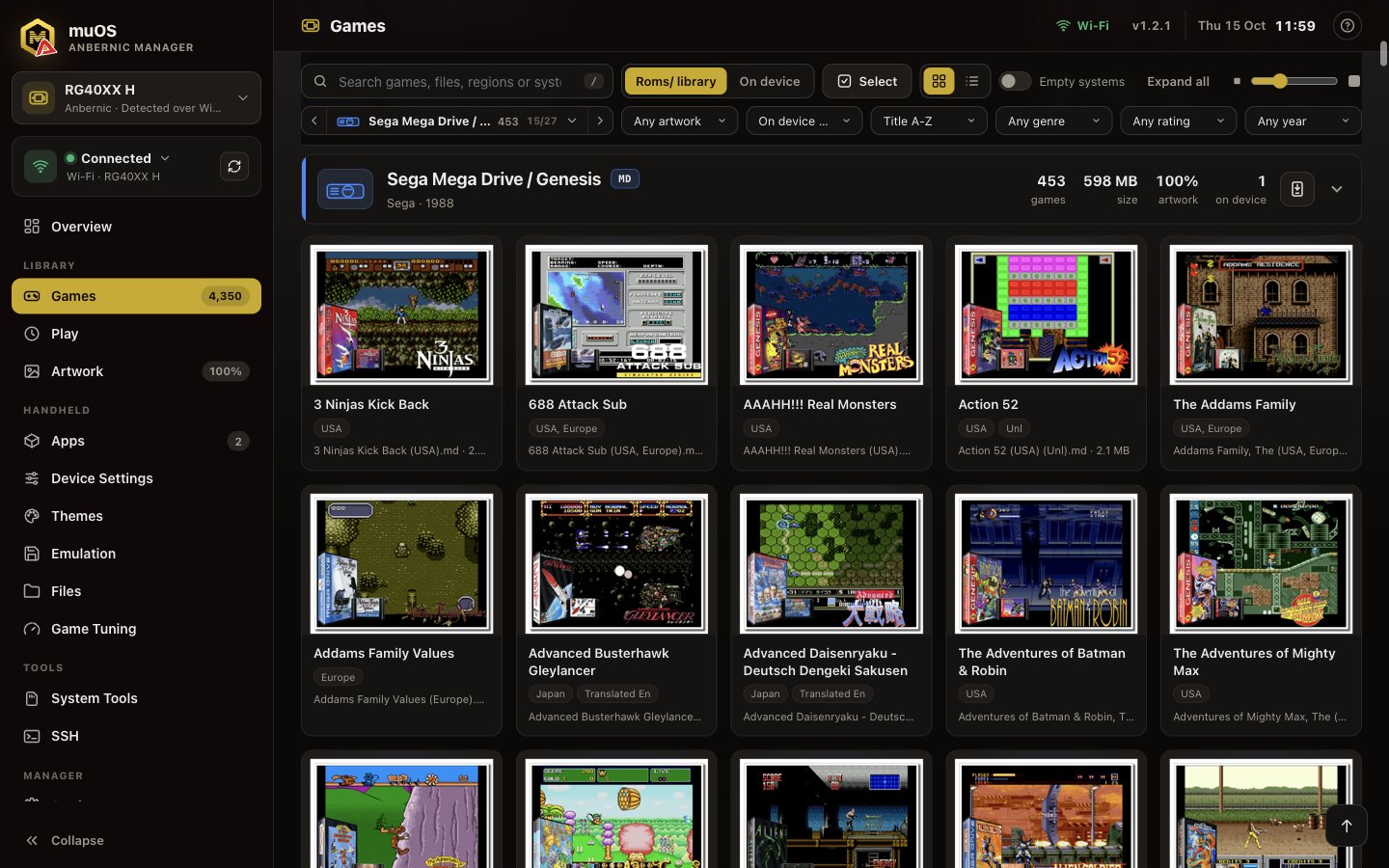
- Games: browse your
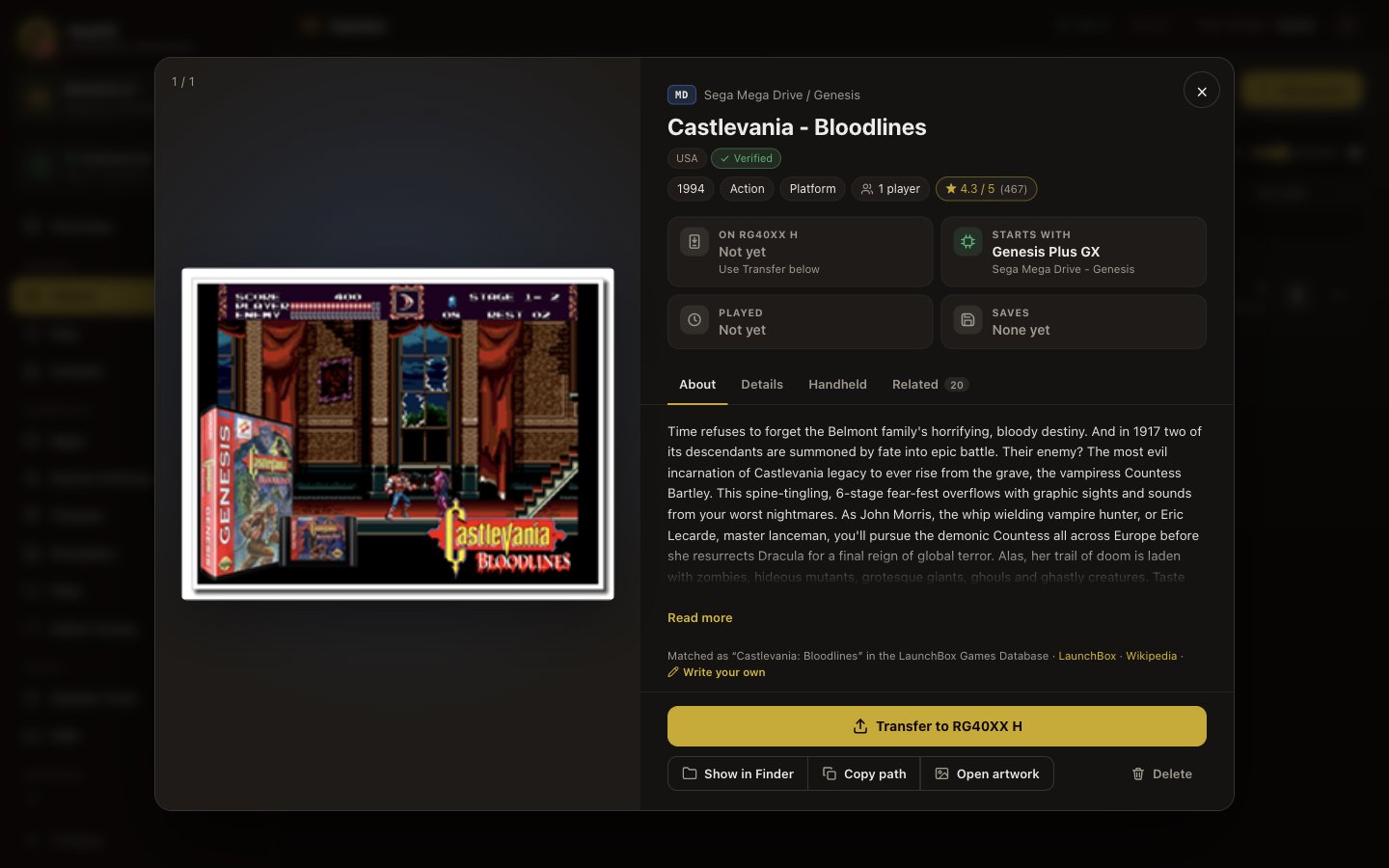
Roms/library by system with search and filters, add games by drag and drop, see what is on the handheld and what is missing, and copy games over. - Game view: box art, description and video for each game, a library check (verified / bad dump), missing BIOS. With the handheld connected it also shows the core the game starts with, play time and saves.
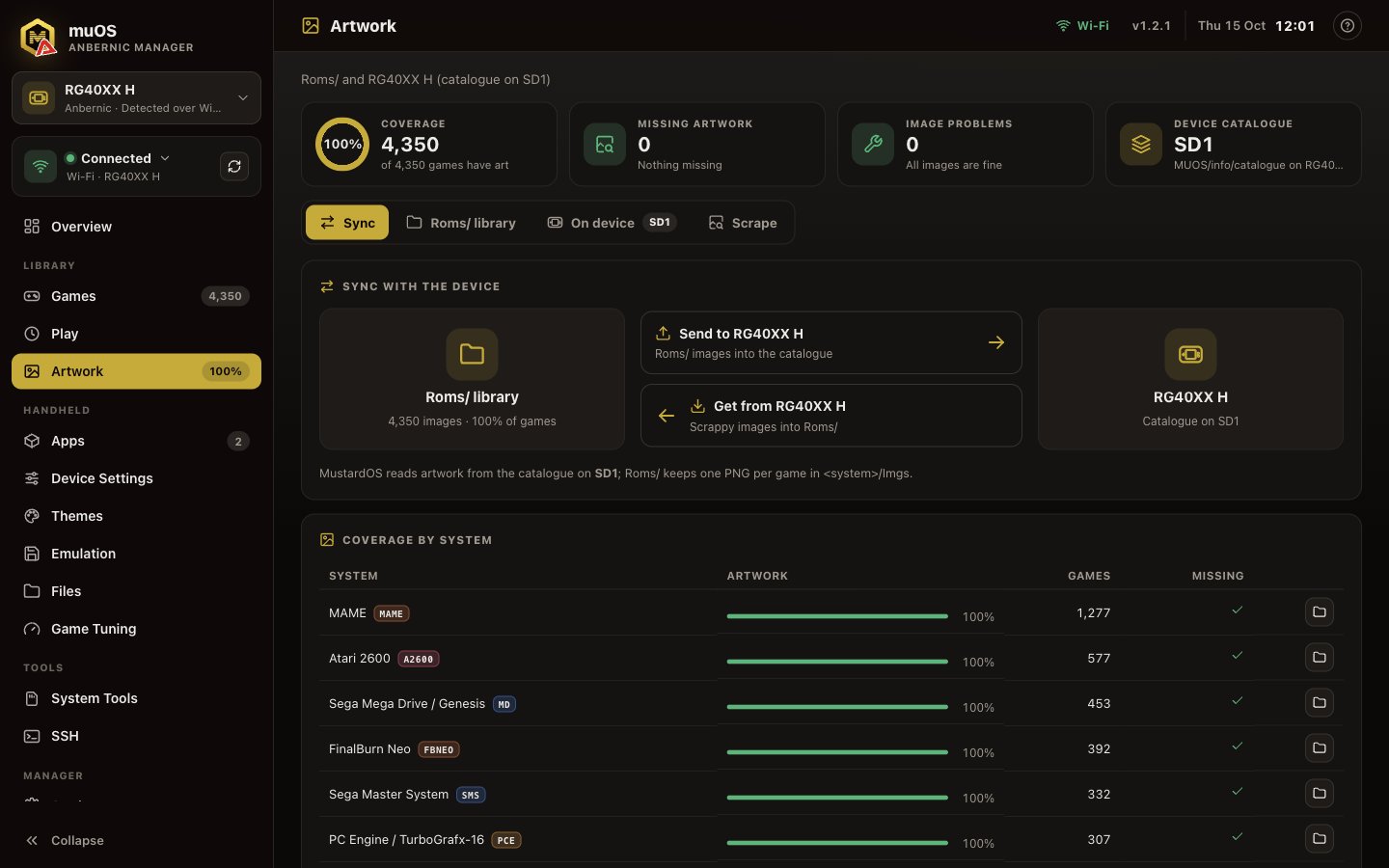
- Artwork: fetches box art, screenshots and descriptions (libretro thumbnails, LaunchBox), sized for your screen, and syncs them to the handheld.
- Play: play time, recently played games and collections.
- ScummVM and ports: free ScummVM adventures with one-click download, and the PortMaster catalogue with install over Wi-Fi.
Handheld
- Apps: an app market of popular muOS apps (it picks the package that fits your device), plus
.muxapp/.muxupdinstalls. - Device Settings: change muOS settings (display, audio, network, interface…) from the computer.
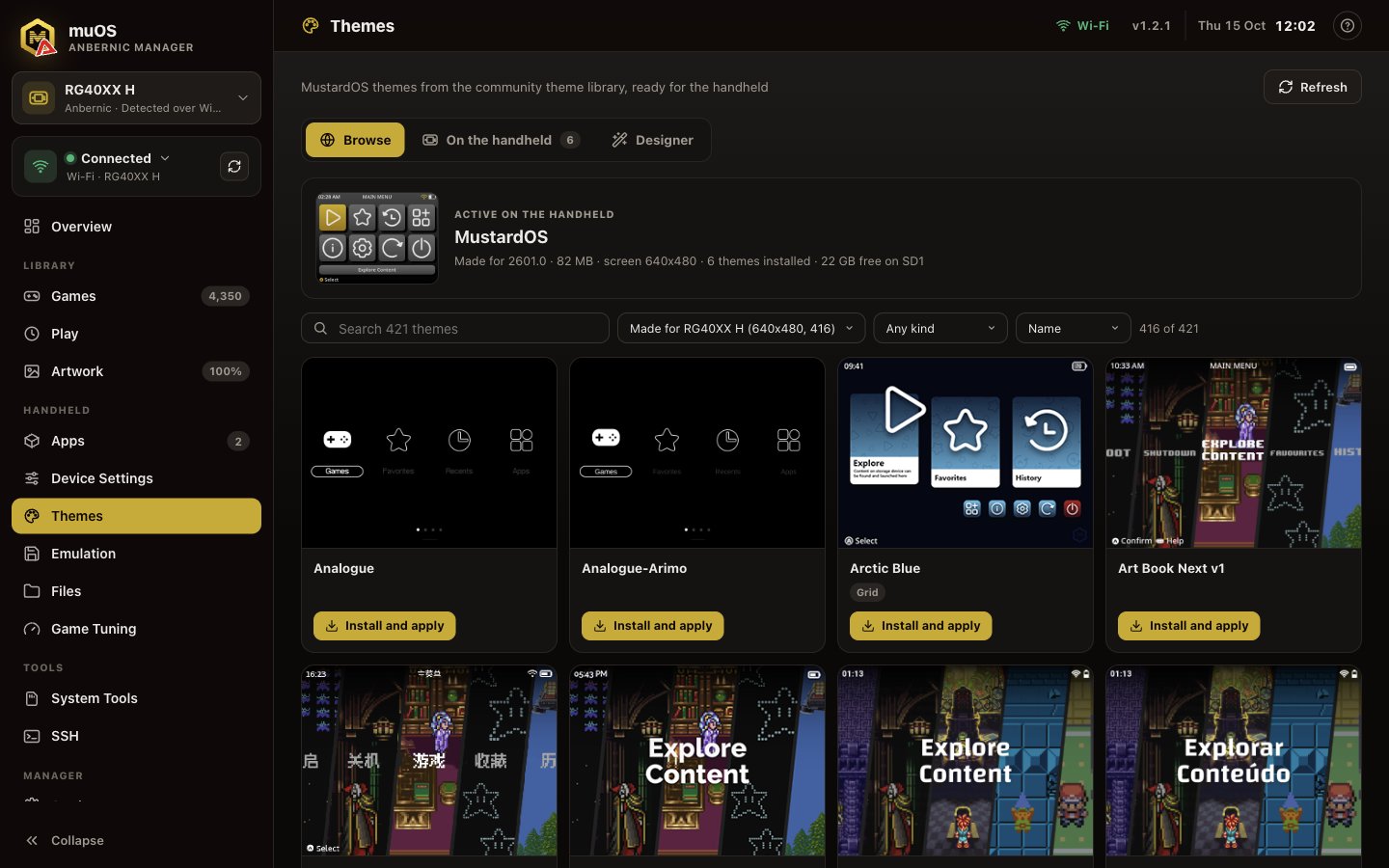
- Themes: the community theme library filtered for your screen, with previews, install and apply.
- Emulation: back up and restore saves, check BIOS files, choose cores per system or per game, edit RetroArch options.
- Game Tuning: per-game emulator settings for heavy games (PPSSPP, Mupen64Plus-Next, PCSX-ReARMed, SwanStation, DuckStation, Flycast) and a per-game CPU governor, with simple presets.
- Files: your computer and the handheld side by side.
Tools
- System Tools: install muOS on an SD card, set up a TF2 games card with every system folder, or wipe a card.
- SSH terminal in the browser, a built-in wiki, and one-click updates of the manager itself.
A few honest notes
- I have only tested it on my RG40XX H. It knows about the other Anbernic H700 models and the TrimUI Brick / Smart Pro (screen sizes, card slots, Wi-Fi), but I could not try them myself, so reports from other devices are very welcome.
- Everything runs locally on your computer. Nothing is uploaded anywhere.
- Anything that changes the handheld or erases a card asks first. Deleting on the computer goes to the Trash, but deleting on the handheld is permanent (the manager tells you before it does it). Please back up your saves before experimenting.
- Wi-Fi features need SFTP + Filebrowser, and Secure Shell for settings, apps and themes (Configuration > Web Services).
Getting it
Download and installation instructions are on GitHub:
GitHub - aaronns87/muos-anbernic-manager: Local web manager for an Anbernic RG40XX H running MustardOS: games, artwork, ports, themes, apps and device settings · GitHub
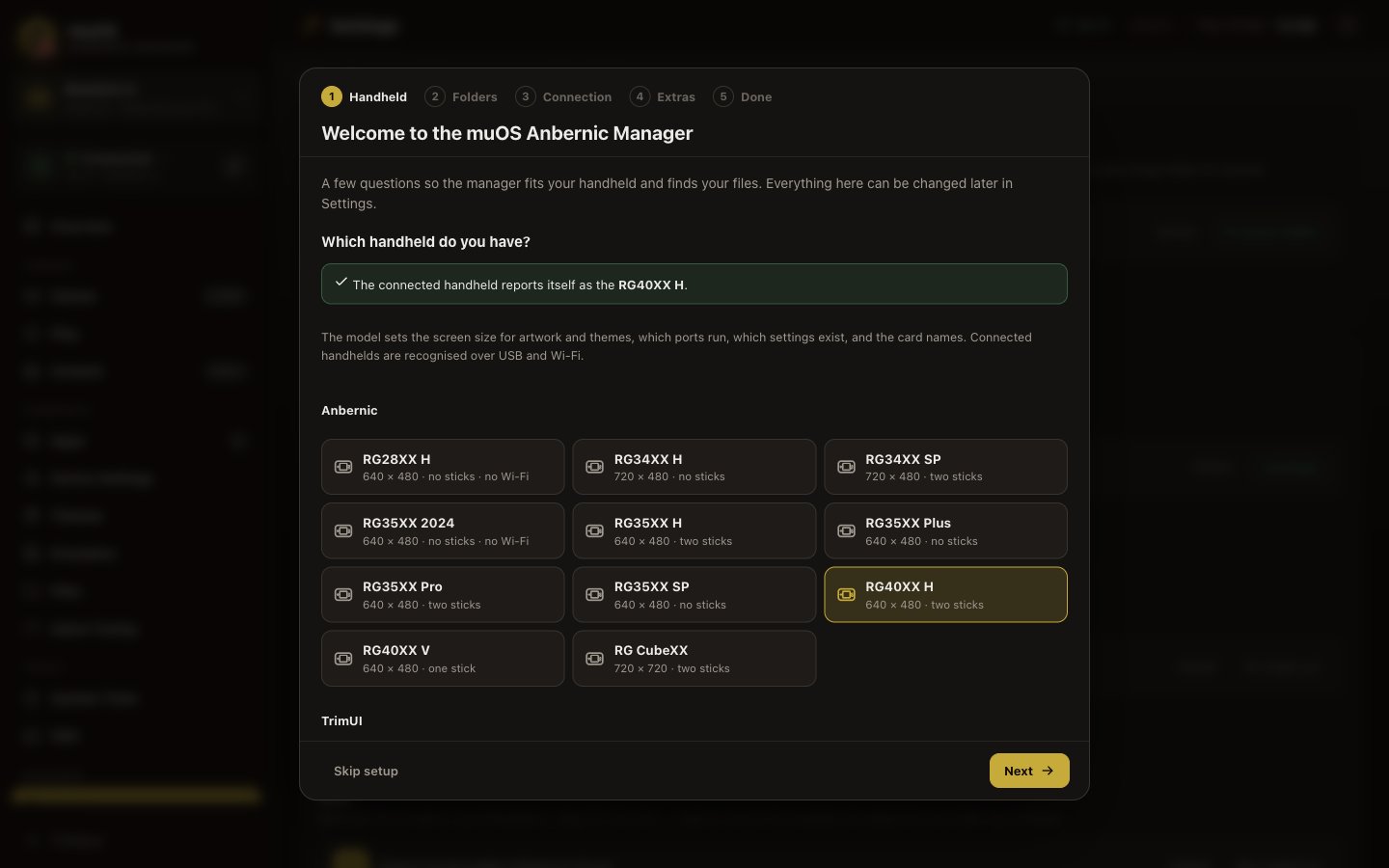
You need Node.js 23.6 or newer (the installer can set it up for you). Then run installer.sh (macOS / Linux) or installer.cmd (Windows), and a setup wizard asks for your handheld, folders and connection.
Feedback
My plan is to keep improving it based on my own use and on your feedback. If something breaks, does not fit your device, or you have an idea, reply here or open an issue on GitHub. I would really appreciate it.
Thanks to the muOS team and everyone in this community for the firmware, the themes and all the apps. This project is not affiliated with muOS or Anbernic.
