Need to write an image to an SD card, or format a card, without reaching for a PC?
Image Burner does it right on your muOS handheld, controlled entirely with the D-pad and buttons.
Download
(The app includes everything it uses — nothing to set up.)
Screenshots
What it can do
Write images to a card
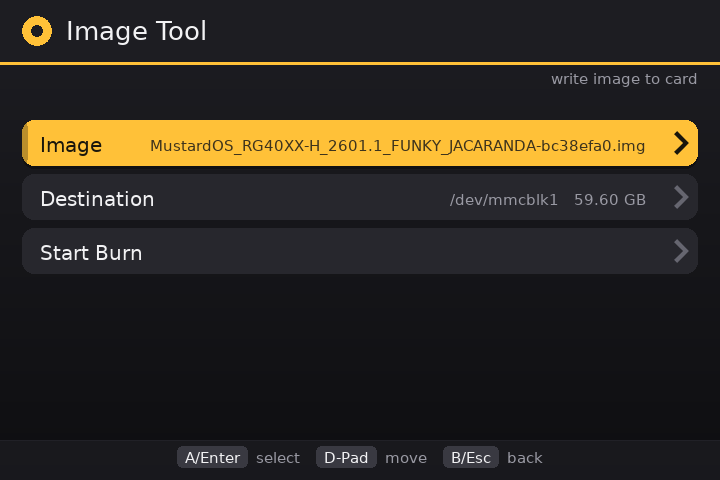
- Pick an
.isoor.imgfile, choose the card, and write it - Compressed images work too (
.img.gz,.img.xz) — no need to unpack them first - Progress bar with speed and time left
- Cancel any time; it tells you if the card was finished or not
- Won’t write to the card muOS is running from, or an image too big for the card
Format a card
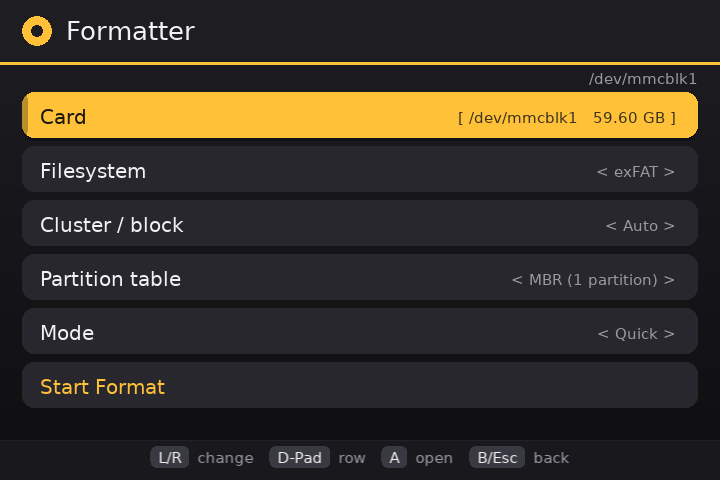
- Formats: FAT12, FAT16, FAT32, exFAT, EXT2, EXT3 or NTFS
- Optional: cluster size and partition style (MBR, GPT, or none)
- Quick format, or full format that wipes the whole card first
- Cancellable while it works
Stays safe
- The card muOS is running from is locked and can’t be selected
- Nothing is erased without a confirmation screen
How to install
- Download
ImageBurner-1.0.1.muxapp - Copy it to your card — either
ARCHIVEfolder (SD1 or SD2) - On the device open Applications → Archive Manager, pick the file and install
- Launch Image Burner from Applications
How to use
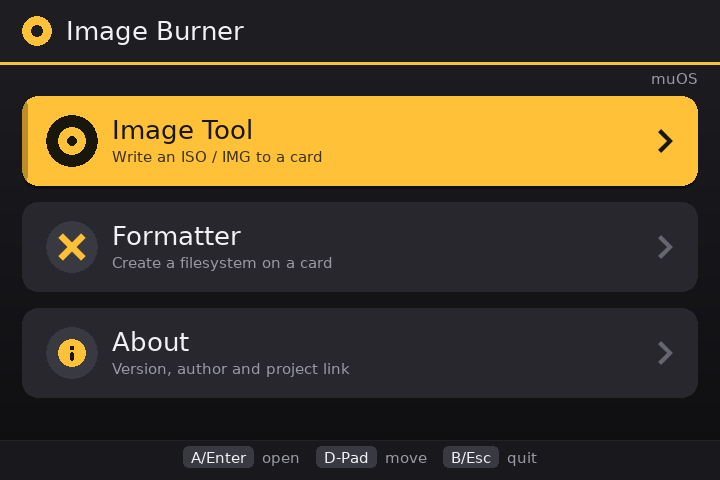
- Burn an image: Image Tool → Image → Destination → Start Burn → confirm
- Format a card: Formatter → Card → choose your settings → Start Format → confirm
Compatibility
- Tested on Anbernic H700 handhelds (RG34XXSP) with muOS 2601.0 (Jacaranda)
- Should work on other muOS handhelds too — please share your results
Formatting erases the card you choose. Use a spare card and back up anything important first.
FAQ
Can I use it to make a Windows installation USB/SD card?
No — not a working one. Image Burner writes images byte-for-byte (a raw copy,
exactly the same as dd, balenaEtcher, or Rufus’s “DD mode”). A Windows setup ISO is
an optical-disc image (UDF/ISO 9660), so a raw copy of it isn’t a normal, readable
card: Windows can’t open it, and Windows Setup often can’t read its own files from it
either. Building a working Windows installer means extracting the ISO’s contents
onto a FAT32 card and splitting the oversized install.wim — which is what Rufus and
Microsoft’s Media Creation Tool do on a PC. So use Image Burner for Linux/OS images
(muOS, Knulli, Batocera, …) and .img files, and make Windows install media with a
PC tool.
Why does the progress bar sometimes show “…” instead of a percentage?
Some compressed .gz images are too big to measure. gzip stores the uncompressed size
in a 4-byte field, so for images over 4 GB it can’t be trusted, and Image Burner won’t
unpack the whole file just to count it. When the total size isn’t known, the bar rolls
instead of filling and there’s no percentage or time left — the write itself is
unaffected. Uncompressed .img/.iso files and .xz images always show a normal
progress bar.
Links
- GitHub: GitHub - tonywei92/muos-imageburner · GitHub
- Downloads: Releases · tonywei92/muos-imageburner · GitHub
- Report a bug: Issues · tonywei92/muos-imageburner · GitHub
Free and open source (MIT). Made with  for the muOS community.

 That’s exactly why I built it. I’m off to China next week to grab a few handhelds and can’t bring a laptop, so I needed a way to flash cards on the go. Glad it’s useful!