Sorry, but that was quick BTW.
How can i access this template within scrappy? I have the 4.0 release from your github and I’m using a Brick with the fluent theme. The only scraping themes that i see are: box2d, boxart+screenshot, three-mix, arcade-machine-cropped…
I think you’d still need a separate template for 1024x768 display, as the one I made is for 640x480 and that’s why it’s not displayed in Scrappy. I can later work on it if you want
Just install this package via Archive manager and you should have screenshot-fluent-768p and screenshot-fluent-no-offset-768p templates. Refer to my original post about Scrappy templates for more info on what is what.
Fluent-Scrappy-Templates-v2.muxzip (13.4 KB)
thank you! I will try that!
Edit: Yep, that did it! Thank you!
Can u make a pr to add these too bro
I’ll be away from my pc this evening, I might get to it tomorrow
is there a skraper config of this? that’s how i’d been using for my others (catOS for example), scrappy hasn’t worked well for me. i also have a lot of games so it takes a while. easier on my PC.
No, sorry. I solely use Scrappy, so I never got to create alternative templates
1 Like
understood, thanks. love the theme and hope to see more colors come out of it.
Italiano (IT)
{
  "charging": "Caricamento In Corso...",
  "menu": {
    "explore": "Giochi",
    "collections": "Collezioni",
    "history": "Cronologia",
    "applications": "Applicazioni"
  },
  "rebooting": "Riavvio",
  "shuttingDown": "Spegnimento"
}
This is the perfect theme for my brick, can you add the Italian language? Thanks!!
Sure, I’ll add it. I’ll update the GitHub release later today.
1 Like
Great theme! One of the best I’ve seen except it’s missing some things that are crucial for me.
Some requests:
Fbneo
Mame
Intellivision
Super Game Boy
Wonderswan
And a greyscale bootlogo.
All of those systems (except for Super Gameboy) already have icons available, but you might need to rename them to match your rom folder name if muOS doesn’t detect them as folders for those systems.
Hmm. Muos was recognizing them (cores assigned and scraping games in Scrappy) but there weren’t icons for them in fluent. I haven’t tried since the recent muos update though, so I’ll have a look.
I looked into it a bit more. Intellivision is still presenting a ? icon even though I’ve been playing games in it (there’s a core assigned.)
FBneo and MAME both have the same vague arcade icon so they’re not distinguisabnle from each other. Wonderswan has an incorrect Wonderswan Color icon.
Oh, and I’ll add a request for Atari 800 which I started playing recently. It has a ? icon as well.
Apparently, the naming for Intellivision icon changed at some point and I missed that, I’ll fix that in the next release and I’ll also add Atari 800.
For the others, like I said, you’ll need to rename some of the icon filenames in the theme directory to match the folder name of the system in your setup. muOS is set up to use cores that can play multiple systems and won’t know which icon to use if you split the directories into separate supported systems (like FBNeo or regular Wonderswan).
Go to /MUOS/theme and to the directory with the version of the theme you use, then in /catalogue/Folder/grid/{your_resolution} look for icons like finalburnneo.png, WonderSwan.png etc. and rename them to match the name of the directory you use for those systems. So, if your WonderSwan games are in WS directory, rename WonderSwan.png to WS.png and so on.
I’ve released a new version on GitHub, it contains new icons for the systems you mentioned.
Awesome! I didn’t understand that but I get it now. Thanks.
New request: I have my arcade games separated in subfolders by genre. The current folder is shown at the top of the screen, but the same icon is shown for each subfolder. Is there any way to display the names of the folders I’m looking at? (I’m happy to edit this myself if there isn’t a good way to make this suitable for all users.)
You can see below that I’m inside of the horizontal folder, but I can’t see beatemup and shmup, for example.
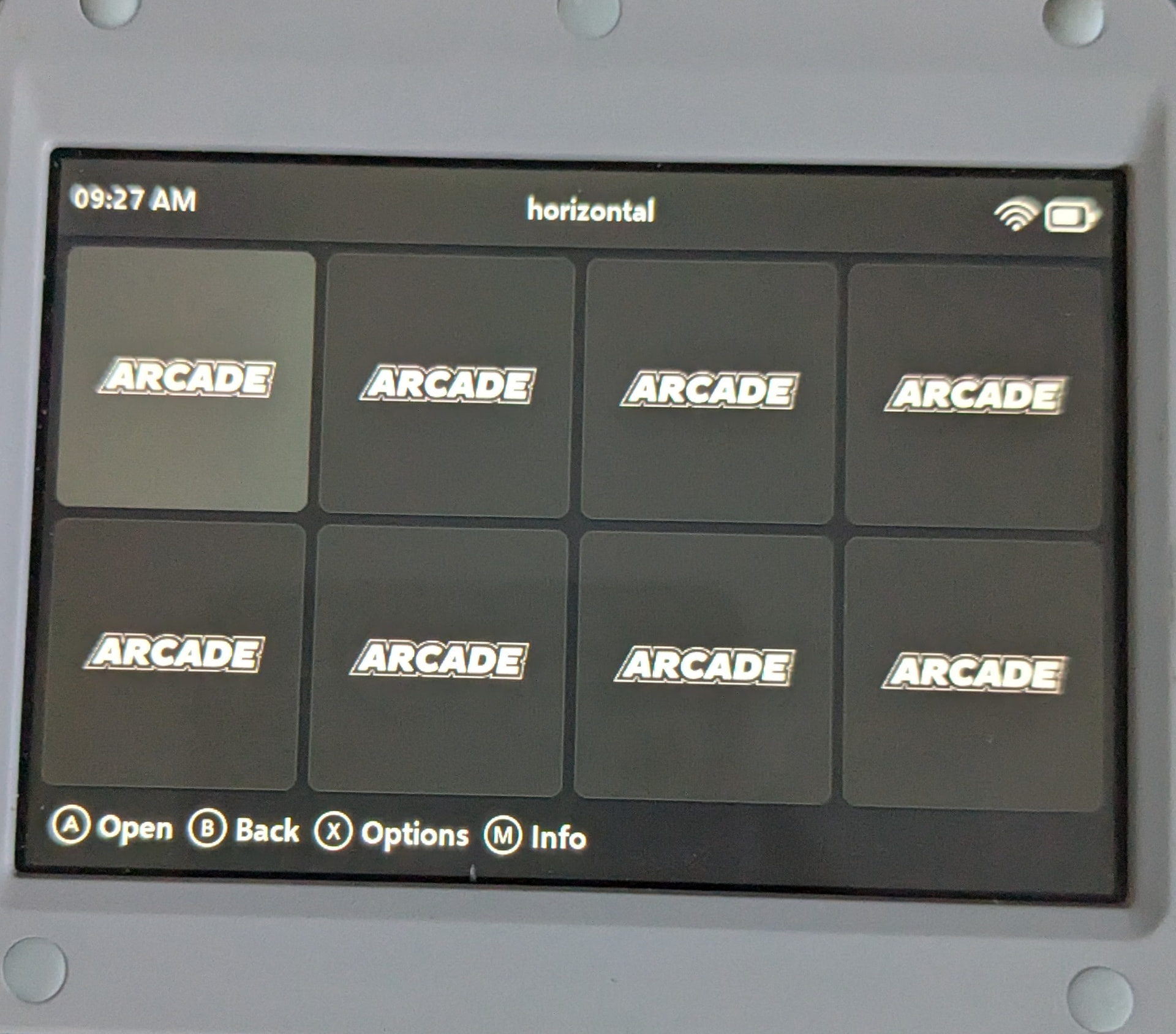
I guess the easiest way to make it work is to use scheme file from Applications view, which has titles below the icons.
In the theme directory, go to {your_resolution}/scheme and replace muxplore.ini with muxapp.ini. I’m not sure it will look okay in most cases, but that’s one way to do it.